





















How to Design a Facebook Business Page: Avatar, Cover, Action Button
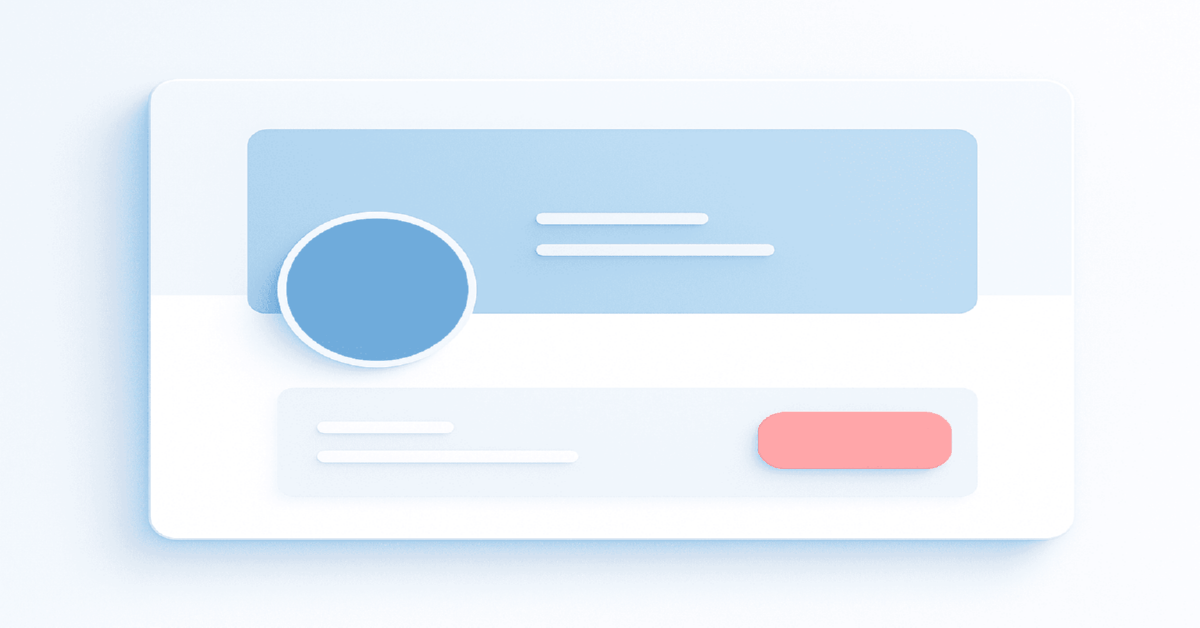


Table Of Contents
- What Changed in Facebook Business Page Design in 2026
- Avatar (Profile Picture): Specifications and Best Practices
- Cover Image: Specifications, Safe Zone, and Mobile Crop
- Action Button: Choose, Configure, and Test
- Page Bio, Category, and About Section
- Real Case: Page Redesign That Lifted Ad CTR
- Quick Start Checklist
- What to Read Next
Updated: April 2026
TL;DR: Your Facebook Business Page is the face of every ad you run — a broken or empty page kills conversion trust before the user reads a word of your copy. Avatar safe zone is 170×170px on desktop; cover safe zone is 820×312px. Getting the design right takes 2-3 hours, not days. If you need pages that are already set up and ready for ads — browse Facebook fan pages with followers — verified and ready to deploy.
| ✅ This guide is for you if | ❌ Skip this if |
|---|---|
| You're setting up a new Business Page for ads | Your page is already optimized and running |
| Your page looks unprofessional or incomplete | You need campaign setup help (wrong article) |
| You're connecting a page to a Business Manager | You run ads without a page (rare, not recommended) |
| Your current cover image gets cropped on mobile | Page design is handled by your design team |
| You want to optimize the action button for conversions | Your vertical doesn't use Facebook Pages |
A Facebook Business Page is the advertising entity that appears in every Facebook ad you run. It's the name, avatar, and cover users see in the ad preview, in comments, and when they click through. A poorly designed page — blurry logo, missing cover, no bio, no action button — signals to both Facebook's algorithm and your potential customers that you're either new or not serious. Both outcomes hurt performance.
Old fan pages with followers perform much better for ads than new empty pages. A page with social proof (followers, reviews, posts) signals legitimacy to both Meta's moderationsystem and to users who check the page after seeing an ad.
What Changed in Facebook Business Page Design in 2026
Key changes affecting your setup this year:
- New Pages Experience is now mandatory. Classic Pages are fully deprecated. If you were running Classic Page layout, it's been auto-migrated. New Pages Experience has a different grid layout — cover images behave differently on desktop vs mobile.
- Profile picture (avatar) is now circular everywhere. Previously, profile pictures were square in some contexts. In 2026, all profile picture displays are circular — design your logo with this in mind and add a 15-20px safe zone around the edges.
- Cover image mobile crop changed. On mobile, covers crop to approximately 640×360px from the center of your 820×312px image. Place all critical visual elements in the center horizontal band.
- Action buttons added a "Start order" integration. For food/retail businesses using Meta's order integration, the action button can now directly open an order flow.
- Page transparency section expanded. Users can now see your page's ad history, creation date, and country of management. Pages created recently with no post history that immediately run ads get more scrutiny from users.
Avatar (Profile Picture): Specifications and Best Practices
Technical Requirements
- Display size on desktop: 170×170px
- Display size on mobile: 128×128px
- Upload recommended size: 400×400px minimum (larger is better, Meta scales down)
- Shape: Circular (square uploads, displayed as circle — corners are clipped)
- Format: JPG or PNG
- File size: Under 100KB recommended for fast loading
Safe Zone
Because the avatar displays as a circle, a square logo gets its corners clipped. Your design must keep all critical elements — text, icon, brand mark — within a circular area with at least 15-20px padding from all edges.
Practical rule: If your logo has text near the edges, it will be cut off. Either redesign the logo version for the avatar, or use an icon-only version without text.
What Works and What Doesn't
| ✅ Works | ❌ Doesn't Work |
|---|---|
| Simple icon/symbol on solid background | Complex logos with small text |
| Brand initial on colored background | Photos of people (too small, unrecognizable) |
| Product close-up on white/transparent bg | Screenshots of websites |
| Icon version of a wordmark | Busy multi-element compositions |
The avatar appears at 36×36px in comment threads and ad unit previews. At that size, only the simplest designs remain recognizable.
Related: Instagram Profile Design: Avatar, Nickname, Bio, Link & Highlights That Convert
⚠️ Important: Your avatar is the face of your ad in the Facebook ad unit. Users see it next to your page name before they read your headline or description. A blurry, pixelated, or irrelevant avatar immediately signals low-trust, increasing your ad's negative feedback rate. This directly affects your CPM through Quality Ranking.
Cover Image: Specifications, Safe Zone, and Mobile Crop
Technical Requirements
- Recommended upload size: 820×312px (desktop aspect ratio) or 1640×624px for retina
- Mobile display: Crops to approximately 640×360px from center
- Format: JPG or PNG
- File size: Under 100KB for fast loading
- Video covers: MP4, 20-90 seconds, same crop rules as image
The Mobile Crop Problem
This is the #1 mistake in Facebook page design. Your 820×312px cover looks perfect on desktop. On mobile (where 94%+ of Facebook traffic occurs), the top and bottom of the image are cropped, showing only the center 640×360px band.
Safe zone for mobile: Keep all critical text, logos, and CTAs within the center 640×360px area. Place decorative elements in the top/bottom margins that can be safely cropped.
Test by uploading to Facebook and checking on a mobile device immediately. What you see on desktop is not what your audience sees.
Related: Instagram Covers and Previews: How to Increase CTR Without Text in an Image
Cover Image Design Principles
A business page cover serves two purposes: brand legitimacy and conversion intent.
For legitimacy: Show your product, team, or service in use. A real photo builds more trust than a stock image. If you're selling online services, a screenshot of your product UI works well.
For conversion: Add a clear headline and one CTA in the safe zone. Example: "Get your free consultation →" or "Trusted by 12,000 marketers." The cover is prime real estate — use it.
For ad accounts and media buying niches: Keep covers generic enough to work across offers. If you're testing multiple verticals, a clean brand cover (logo + tagline + domain) is safer than an offer-specific creative.
For pages used with Business Manager ad accounts, see Attach a Page and Ad Account to Business Manager: roles, domains, pixel setup.
Action Button: Choose, Configure, and Test
The action button appears prominently on your page below the cover image, and in some ad placements. It's the primary conversion mechanism on the page itself.
Available Action Button Types
| Button Type | Best For | Conversion Mechanism |
|---|---|---|
| Contact us | Service businesses | Opens Messenger, email, phone |
| Book now | Appointments, bookings | Links to booking tool or URL |
| Call now | High-intent mobile users | Direct phone call |
| Send message | Lead nurturing | Opens Facebook Messenger |
| Send email | Email-first businesses | Opens default email client |
| Learn more | Content, info-first | Links to external URL |
| Shop now | E-commerce | Links to product catalog or store |
| Get offer | Promotions | Shows promo code or links to URL |
Setting Up the Action Button
- Go to your Business Page.
- Below the cover image, click "Add a button" (first time) or edit the existing button.
- Select the button type from the list.
- Configure the destination: URL, phone number, or Messenger.
- Click Save.
- Test immediately: click the button yourself to confirm it goes to the correct destination.
Best practice for most verticals: Use "Send message" (Messenger) for service businesses generating leads, or "Shop now" / "Learn more" linked to a specific landing page for e-commerce and affiliate.
⚠️ Important: The action button URL must lead to a working, fast-loading page. A broken link or 404 error on the action button trains users that your brand is unreliable — and Facebook's quality signals pick up on high bounce-back rates. Test every button before launching ads.
Related: How to Maintain a Company LinkedIn Page: Tasks, Content, and Design That Actually Drive Leads
Need verified Facebook ad accounts with pre-configured pages? Browse the catalog — tested before dispatch, 250,000+ orders.
Page Bio, Category, and About Section
These fields affect how your page appears in Facebook Search, how users understand what you offer, and — indirectly — how Meta's moderation system categorizes your content.
Page Category
Select the most accurate category for your business. Facebook has hundreds of subcategories. Be specific: "Digital marketing agency" rather than "Business." "Online clothing store" rather than "Retail."
Accurate category selection affects which page templates you get (and which action button types are available) and how your page surfaces in relevant searches.
Page Bio (Short Description)
- Maximum 255 characters
- Appears in search results and the page intro
- Include your primary keyword and a clear value proposition
- Example: "Verified ad accounts for media buyers. Facebook, Google, TikTok. Instant delivery. 250K+ orders. Support in 5-10 min."
About Section
The About tab is where users go to evaluate legitimacy before trusting an ad. Fill in: - Full description (what you do, who you serve) - Website URL - Phone number (if applicable) - Business hours - Location (if brick-and-mortar) - Founded date
An empty About section on a page running ads is a red flag to users and a weak trust signal to Meta. Pages with verified pages have a checkmark that boosts ad trust — see verified pages in our catalog if you need established page infrastructure.
Real Case: Page Redesign That Lifted Ad CTR
Situation: A nutra advertiser running Facebook traffic with CTR 0.9%. The page had: a placeholder grey square as avatar, no cover image, bio empty, no action button. Users clicking the page name saw a shell with no content.
Action: - Replaced placeholder avatar with brand icon (white capsule icon on dark blue background, 400×400px) - Added cover: product lifestyle photo with headline "Science-backed supplements. Fast delivery." in the mobile safe zone - Added "Shop now" action button linked to store homepage - Wrote 200-character bio with primary keyword - Posted 3 product photos to populate the feed
Result after 14 days of ads running: - CTR: 0.9% → 1.4% (same targeting, same copy, same landing page) - Ad frequency could be pushed to 4.5 before quality drop (previously, 2.5 was the limit) - Comment negative rate dropped by 60% ("who is this?" type complaints stopped)
The page design didn't change the product or offer — it changed the trust context in which the ad appeared. That trust context directly affects whether users click through or scroll past.
Build your full launch stack: farm accounts for testing + $250-limit profiles for proven offers.
Quick Start Checklist
- [ ] Avatar: 400×400px PNG, logo/icon centered with 20px safe zone from edges
- [ ] Preview avatar as circle — ensure no text or important elements are in corners
- [ ] Cover: 820×312px (upload 1640×624px for retina quality)
- [ ] Place all critical cover elements within 640×360px center zone
- [ ] Check cover on mobile immediately after upload
- [ ] Set action button appropriate to your conversion goal (Messenger, Shop Now, Book Now)
- [ ] Test action button — click it yourself, verify destination loads
- [ ] Write page bio (255 char max): primary keyword + value proposition
- [ ] Complete About section: description, website, contact info
- [ ] Add at least 3-5 posts before running ads (empty feed kills trust)
- [ ] Connect page to Business Manager if running agency-managed ads
What to read next: - Connecting page to BM → Attach a Page and Ad Account to Business Manager - Lead collection → Facebook Instant Forms in 2026: Setup, QA Checklist - BM setup → Meta Business Manager setup from scratch (2026) - Creative mistakes → Beginner Meta Creative Mistakes in 2026
What to Read Next

Hashtags and SEO on Instagram: Keywords, Descriptions, and Search Optimization
Updated: April 2026 TL;DR: Instagram search now works like a mini search engine — hashtags alone won't cut it. Keyword-rich captions,...

Stories vs Spotlight on Snapchat: What, Where, and How to Post for Growth
Updated: April 2026 TL;DR: Stories build loyalty with your existing followers while Spotlight pushes your content to millions of strangers through...

TikTok Business Center Setup: Roles, Permissions & Team Management in 2026
TL;DR: TikTok Business Center (BC) is the agency layer that lets you connect multiple Ad Accounts, assign team roles, and...


